While building Vulcard for the Game Programming Lab at ETH Zurich, we accumulated dozens of individual sprite PNGs for icons and UI elements. Loading each as a separate texture works fine early on. It’s not how you want to ship, though. Every SpriteBatch.Draw call that switches textures flushes the GPU batch, and 60 sprites can easily mean 60 separate draw calls per frame. The fix is a texture atlas: one large texture containing everything, so the batch stays intact.
We have already been using MLEM which supports spritesheets in the form of its DataTextureAtlas. However, images have to be manually merged into a single file and documented in a .atlas metadata file.
To automate this process I built Vulcard.AtlasPacker, a content pipeline extension that reads a plain-text .atlaspack file and produces a packed texture plus the companion .atlas metadata file at content build time.
This post walks through installation, the manifest format, processor options, and how to load the result at runtime using MLEM’s DataTextureAtlas.
Why Do Texture Atlases Matter in MonoGame?
MonoGame’s SpriteBatch batches draw calls, but only for consecutive draws that share the same texture. Switch to a different Texture2D and the current batch flushes to the GPU immediately. With many small sprites each living in their own file, that flush happens constantly. Packing everything into one atlas means every sprite draw shares the same texture, so the entire frame goes through as a single batch.
How Does AtlasPacker Fit into the Content Pipeline?
AtlasPacker is a standard MonoGame content pipeline extension: a DLL that MonoGame’s content builder (mgcb) loads at build time. You write a .atlaspack manifest listing which sprites to include, run dotnet build, and the pipeline produces two output files:
- A
.xnbtexture (or optional.png) containing all the packed sprites - A
.atlastext file mapping sprite names to pixel rectangles in the atlas
At runtime you load those two files with MLEM’s DataTextureAtlas and look up sprites by name. Adding a new sprite means editing one text file. That’s it.
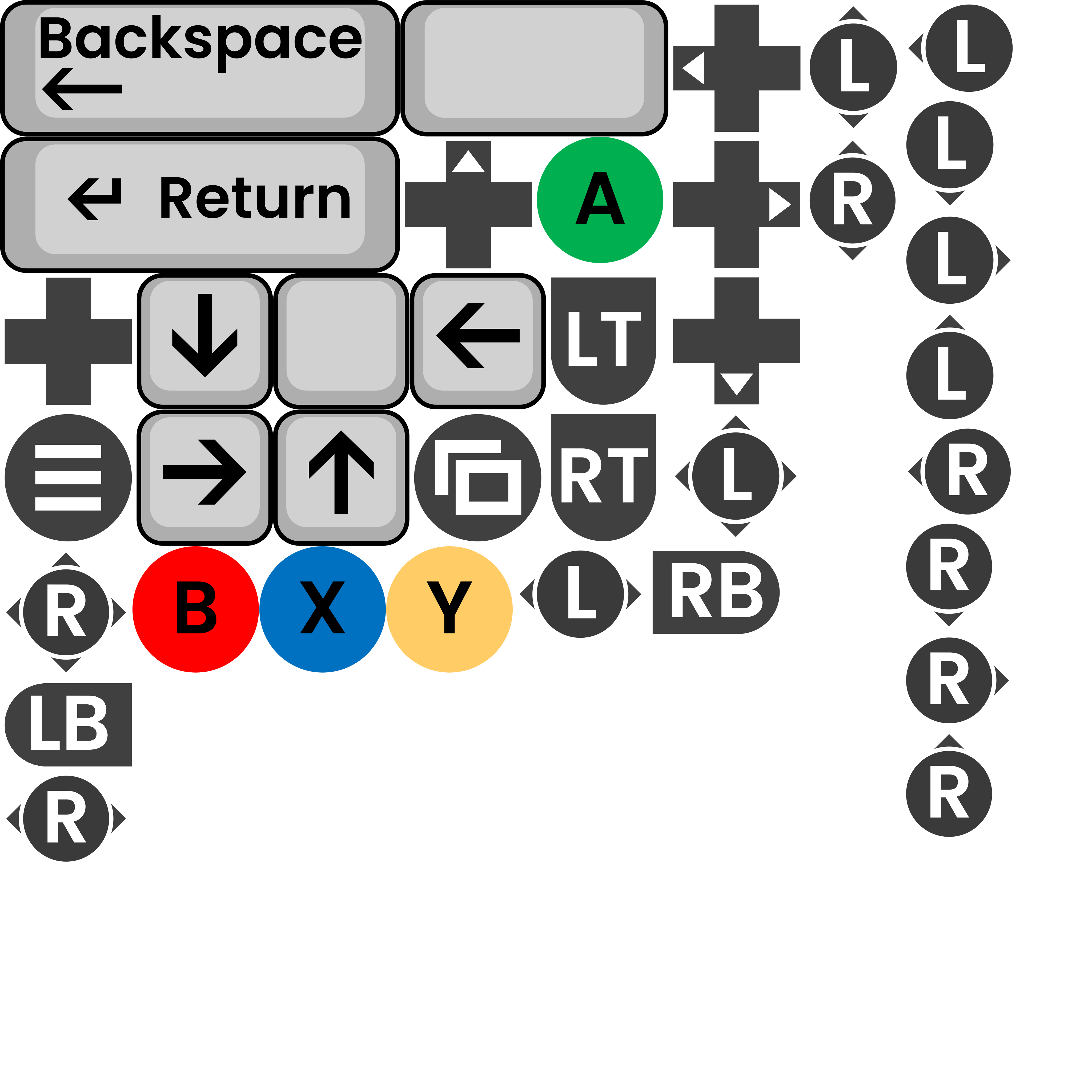
Here is what the packed atlas looks like for Vulcard’s icon sprites — 37 sprites merged into a single texture:
Installation
dotnet add package Vulcard.AtlasPacker
The package’s MSBuild targets file auto-registers the pipeline assembly with MonoGame.Content.Builder.Task. For MSBuild-driven builds, that’s all you need. No manual .mgcb edits required.
If you build content with the MGCB editor or call dotnet-mgcb directly, add the reference manually in your .mgcb file:
/reference:path/to/Vulcard.AtlasPacker.dll
The property $(VulcardAtlasPacker_AssemblyPath) gives you the exact path once the package is restored.
How Do You Write the Manifest?
Create a file with the .atlaspack extension next to your sprites (or anywhere under your content root). Set its Importer to Atlas Packer Importer and its Processor to Atlas Packer Processor in the MGCB editor.
The manifest is plain text: one glob pattern per line, with optional per-sprite annotations. Lines starting with # are comments.
# Global default: pack every sprite below into a 64×64 slot.
size 64

# A glob: picks up every PNG in the Effects subfolder.
Effects/*

# Per-sprite overrides.
button.png size 128 128
sprite.png rect 10 5 48 48
sprite.png rect 10 5 48 48 size 128 128

# Opt out of the global size for a specific sprite.
icon.png size 0 0
Annotations
Every line can carry size and/or rect annotations after the glob pattern. They can appear in either order.
| Syntax | Meaning |
|---|---|
size N | Square target slot. Source is centred; transparent padding fills the gap. |
size W H | Rectangular slot |
size 0 0 | Disable the global default for this entry |
rect S | Source crop (0, 0, S, S) |
rect O S | Source crop (O, O, S, S) |
rect X Y W H | Explicit source crop rectangle |
When no annotations are given and there’s no global default, AtlasPacker auto-trims the sprite. It scans for non-transparent pixels and uses their bounding box as the source region. A 512x512 PNG with a 64x64 icon in the center gets packed at 64x64, not 512x512.
You can also set global defaults at the top of the manifest that apply to everything below:
# Global rect for all subsequent entries.
rect 8 8 48 48

# Clear the global rect (mirrors "size 0 0").
rect 0 0 0 0
Globs are expanded using Microsoft.Extensions.FileSystemGlobbing, so **/*.png picks up all PNGs recursively, Effects/* picks up only the direct children of Effects/, and so on. If the same file matches multiple patterns, only the first occurrence (and its annotations) is kept.
What Processor Options Are Available?
Three properties are configurable from the MGCB editor or your .mgcb file:
| Property | Default | Notes |
|---|---|---|
Padding | 0 | Pixel gutter around each sprite in the atlas |
PowerOfTwo | true | Round atlas dimensions up to the next power of two |
OutputAsPng | false | Also write a .png alongside the .xnb |
Padding adds symmetric gutters between sprites, which prevents texture bleeding when bilinear filtering samples a neighboring sprite’s edge. Even 1 or 2 pixels is usually enough; zero works fine if you’re using nearest-neighbor filtering or don’t see any bleeding.
PowerOfTwo was a hard requirement on older GPUs. Modern hardware handles non-power-of-two textures without issue, so you can disable it to use the exact packed dimensions and shave a bit of memory.
OutputAsPng writes a raw .png alongside the .xnb. This is useful both for inspecting the packed layout during development and for shipping — on Vulcard we use the PNG output directly at runtime, since it’s smaller than the equivalent .xnb.
How Does the Packing Work?
AtlasPacker uses a binary-tree bin packing algorithm, based on the approach described by Jake Gordon. Sprites are sorted by area descending, so the largest sprites get placed first. The tree tracks free rectangles in the atlas, splitting each free region into a right strip and a bottom strip as sprites are inserted. The root node grows right or down to accommodate sprites that exceed the current bounds.
Does this guarantee a globally optimal layout? No, and optimal 2D bin packing is NP-hard anyway. In practice, though, it wastes very little space when sprites have similar sizes, which is the common case for game sprite sheets.
The processor works in two passes. Pass 1 loads each source image just long enough to read its trim bounds, then discards it. Pass 2 composites images into the atlas one at a time, holding only one source in memory at once. For large sprite sets, peak memory stays low regardless of how many sprites you’re packing.
Name collisions
attack.png in different folders would produce a duplicate key. The processor detects this and throws an error listing the conflicting paths.What Does the Output Atlas File Look Like?
The processor writes a <name>.atlas text file next to the built texture. Its format is compatible with MLEM’s DataTextureAtlas (MLEM documentation):
# format xnb

iconattack
loc 0 0 64 64

icondefend
loc 64 0 64 64

button
loc 0 64 128 128
The # format xnb header (or # format png when OutputAsPng is true) is ignored by MLEM’s parser, but lets your own loading code detect which texture type to read. The format itself is dead simple: sprite name on one line, loc X Y W H on the next. You could write a standalone loader in under ten lines of C# if you’d rather not take the MLEM dependency.
Loading at Runtime with MLEM
Atlas keys are filenames without their extension — iconattack.png becomes "iconattack" in the dictionary lookup.
using MLEM.Data;
using MLEM.Textures;

var texture = content.Load<Texture2D>("Sprites/Icons/icons");
DataTextureAtlas atlas = DataTextureAtlas.LoadAtlasData(
    new TextureRegion(texture), content, "Sprites/Icons/icons.atlas");

TextureRegion region = atlas["iconattack"];
spriteBatch.Draw(region, position, Color.White);
The .atlas file starts with a # format xnb or # format png header so your loader knows which texture type to expect. A small helper handles both cases:
public static DataTextureAtlas LoadTextureAtlas(
    this ContentManager content, GraphicsDevice graphicsDevice, string name)
{
    string format = "xnb";
    using (var reader = new StreamReader(
        TitleContainer.OpenStream(content.RootDirectory + "/" + name + ".atlas")))
    {
        var first = reader.ReadLine() ?? "";
        if (first.StartsWith("# format "))
            format = first["# format ".Length..].Trim();
    }

    Texture2D texture;
    if (format == "png")
    {
        using var stream = TitleContainer.OpenStream(content.RootDirectory + "/" + name + ".png");
        texture = Texture2D.FromStream(graphicsDevice, stream).PremultipliedCopy();
    }
    else
    {
        texture = content.Load<Texture2D>(name);
    }

    return DataTextureAtlas.LoadAtlasData(new TextureRegion(texture), content, name + ".atlas");
}
TextureRegion is MLEM’s rectangle-within-a-texture type. Sprite lookups on the loaded atlas are dictionary reads: O(1), allocation-free.
Frequently Asked Questions
Does AtlasPacker work with the MGCB editor?
Yes. Open the MGCB editor, add your .atlaspack file, and set the Importer to Atlas Packer Importer and the Processor to Atlas Packer Processor. If the assembly isn’t detected automatically, add a /reference: line pointing to Vulcard.AtlasPacker.dll. Its path is exposed via $(VulcardAtlasPacker_AssemblyPath) in MSBuild once the package is restored.
Can I use AtlasPacker without MLEM?
Yes. The .atlas format is plain text: sprite name on one line, loc X Y W H on the next. You can write your own loader in a few lines. MLEM’s DataTextureAtlas is the primary target, but it’s not required.
What happens to fully transparent sprites?
The processor logs a warning and substitutes a 1x1 fallback slot rather than crashing. A fully transparent image is almost always a mistake — a missing asset, a wrong path — and a warning is a lot easier to track down than a mysteriously absent sprite.
Wrapping Up
AtlasPacker is a small tool, but it quietly fixed something that was wasting time on Vulcard. Adding a sprite is now one line in a text file, and the build handles the rest. If you’re starting a MonoGame project with more than a handful of sprites, get this set up early.
dotnet add package Vulcard.AtlasPacker
If you’re also setting up cross-platform builds or Steam integration for your MonoGame project, the guide to bundling a MonoGame game for multiple platforms covers the full MSBuild and packaging setup.
The source is on GitHub under the MIT licence.